Writing is free.
You only pay for Dropbox sync in the browser.
WritingBricks is a free editor for long writing. It saves plain text files (Markdown), and every chapter, scene or note is a brick you move, split and join. The yearly plan adds Dropbox sync to the editor in your browser, so you open the same projects from another computer or an iPad.
Checkout is on Whop, the service that handles our payments. It shows 90 days free, zero due today and the date of the first charge. Whop runs the trial, so its rules apply: if you cancel in your Whop orders before that date, the subscription does not renew and you pay nothing.
Already bought? Verify your licence
Why I built it
I am Piernicola De Maria, and I made WritingBricks for the way I work. When I create something, I split it into bricks, like post-it notes. Then I move them around and develop them.
When I started working with AI tools, I hated working with loose .md files. I looked for software made for working this way. I found nothing useful, so I built it.
- binder.md
- project.yaml
- manuscript
- arrival.md
- arrival
- the-inn-gate.md
- the-inn-gate.notes.md
- the-common-room.md
- the-ferryman.md
- characters
- mara-richards.md
A WritingBricks project on disk: a normal folder, one Markdown file per brick.
What it does
All of this is in the free app, on the Mac and in the browser.
Split, move, join
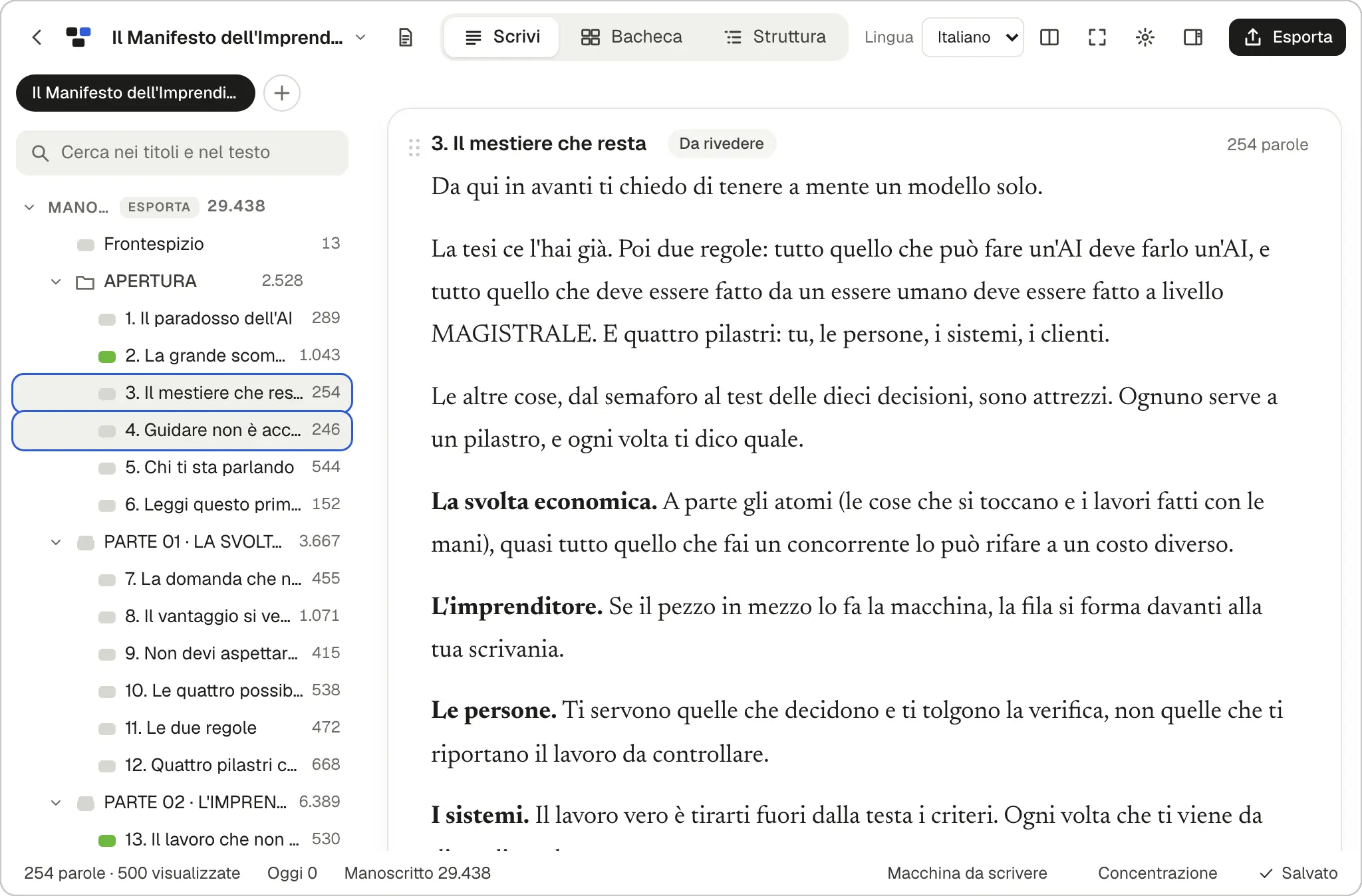
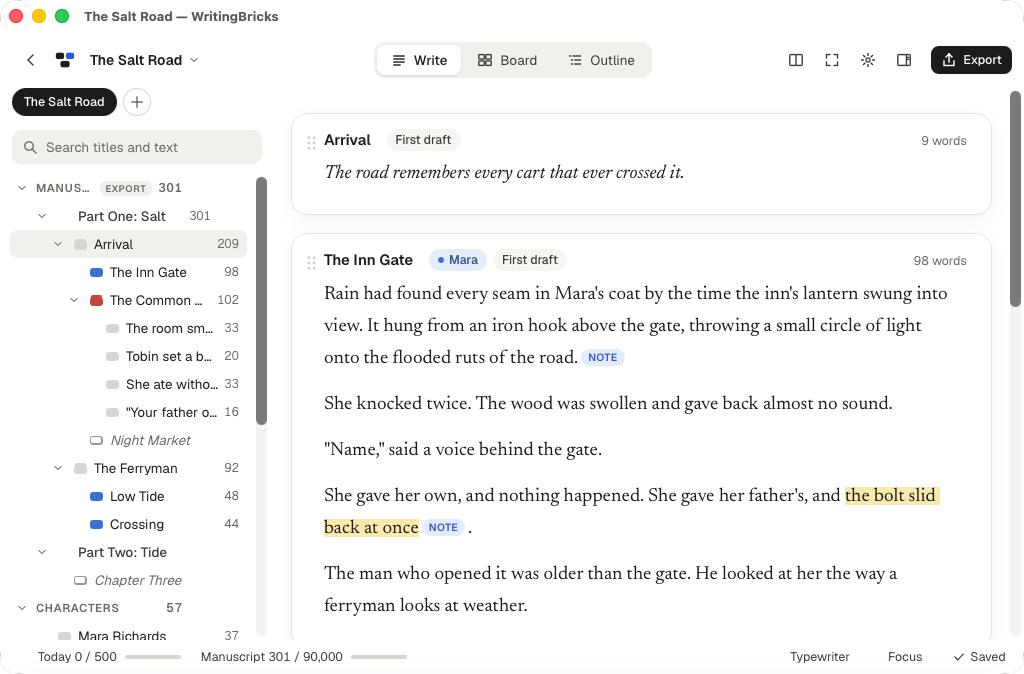
Every chapter, scene, paragraph or note is a brick, saved as its own Markdown file. You drag bricks to reorder them, split one where the cursor is, and merge two. One click turns a chapter into one brick per paragraph, so you move the arguments around until the order works. Another click makes them one file again.
Read it as one text
Select a whole section, a folder or a few scenes and read them in one scroll, as if they were one document. You edit wherever you want: each change is saved to its own file.
Board and outline
Three views of the same files. Write is the editor. Board shows every brick as a card with title, synopsis, label and status. Outline is a table with word counts and targets. You can also put two panes side by side: your notes on the left, the chapter on the right.
Start from a structure
The New project window has 6 starter projects (novel, short story, non-fiction book, thesis, screenplay, blank) and a library of 150 ready-made structures and worked examples, in English and Italian: the outline of a sales letter, of an email sequence, of a webinar, of a non-fiction book, of a novel. You can pick more than one for the same project.
A single file, without a project
You do not have to create a project. Open a .md file and edit it, with tabs, an outline of its headings, visual tables and a version history. If the folder grows, WritingBricks turns it into a project, and saves a backup first.
Full screen, typewriter, focus
Full-screen composition, typewriter scrolling that keeps your line in the middle of the screen, and a focus mode that dims everything except the paragraph you are on. Word count and the day’s target sit in the bar at the bottom.
AI tools read the same folder
WritingBricks has no AI inside and sends your writing to no AI service. A project is a normal folder of plain text files, so the AI tool you already use can open it. WritingBricks keeps two small instruction files in it (AGENTS.md and CLAUDE.md, the names those tools look for) that tell the tool how the project is organised. You decide whether it may edit the files or only read them. When something outside changes a file, WritingBricks notices and does not overwrite it without asking you.
Snapshots, trash, undo
Saving is automatic. You take snapshots, compare two of them word by word and bring back older text. What you delete goes to the project trash, and the last 20 deletions can be undone.
Export when it is ready
Word, EPUB, HTML, Markdown or plain text, for the whole manuscript or only the bricks you selected. For a PDF, use the print dialog. Three layouts are ready: Book, Manuscript and Plain.
What you can write with it
A book
Start from the Novel or the Non-fiction book starter, plan the chapters on the Board, read a whole chapter in one scroll, export to Word or EPUB.
Anything you write together with an AI tool
The project is one tidy folder your tool can read. New files it creates wait in the Inbox, the tray for what you have not placed yet, until you put them where they belong.
A long article or an essay
Write it in one go, split it into paragraph bricks, move them until the argument holds, join them back into one file.
A course
One section for modules and lessons, one for exercises, one for your own notes. Only the sections you choose end up in the export.
An email sequence or a newsletter series
One brick per email, each with its status, and the whole sequence read in one scroll to catch repetitions and changes of tone.
A sales page, an offer, a video script
Start from one of the copywriting frameworks: every brick says what goes there, and a guide section tells you how to review the draft.
A thesis or a report
Footnotes, tables and links between notes stay as they are, with your sources open in the second pane.
A talk
Collect quotes and loose ideas in the Inbox during the week, arrange them as cards on the Board, keep your speaker notes out of the exported text.
What is free, and what US$19 a year adds
Free
US$0 no account, no signup
- The Mac app (macOS 11 or later) and the editor in your browser.
- Every writing function described above: bricks, the three views, the 150 structures, snapshots, export.
- Your writing stays on your device. The free app uploads nothing to our servers.
- On a Mac you can keep a project inside your Dropbox or iCloud Drive folder: their own apps sync it, at no cost from us.
Dropbox sync
US$19 per year, after 90 days free
- Dropbox sync inside the web app, the editor in your browser: you open your projects on Windows, on another Mac, on an iPad or a phone.
- Your documents stay in your own Dropbox. On the way there they pass through the WritingBricks server, which keeps no copy of them.
- You can connect more than one Dropbox, for example a personal and a work one.
- Here too, WritingBricks asks you for no account. You buy on Whop, Whop creates your licence key (a code) when the trial starts, and you paste it once in each browser you use, up to 5 browsers at a time.
90 days free, then US$19 per year plus any taxes shown at checkout. The subscription renews automatically each year until you cancel in Whop.
Already bought? Verify your licence
Dropbox sync is a feature of the web app at writingbricks.com for licensed users. The Mac app is local-first and has no built-in Dropbox connection. Files in a local Dropbox folder are synced by the separately installed Dropbox desktop app.
Questions
Do I need an account?
Not with WritingBricks: there is none to create, for the free app or for the plan. The purchase is on Whop, with your email and a card. Whop keeps your order and shows you a licence key, a code you paste in your browser to switch Dropbox sync on.
Do I need a card for the free trial?
Yes. Whop asks for a card, Apple Pay or Google Pay when you start, and shows 90 days free and a total due today of zero. The first charge, US$19 plus any taxes, comes 90 days later, on the date the checkout shows you. Whop may show the amount converted into your own currency.
Does the Mac app sync with Dropbox?
It does not need to. The Mac app works on folders on your disk: if a project is inside the Dropbox folder on your Mac, the Dropbox app already syncs it, with or without the plan. On an iPad, a phone or a computer without that folder, the editor in the browser has to connect to Dropbox by itself. That connection is what the plan adds. If you only write on Macs that have the Dropbox app, you do not need it.
Where are my documents? Do you keep a copy?
No copy. What you write locally stays on your device. With Dropbox sync your files are in your own Dropbox: they pass through our server on the way there, and nothing is stored on it.
Where do I find the licence key?
Whop creates it as soon as the trial starts. In your Whop orders, open the Software tab and press Copy under “Your license keys”. Paste it on the verification page, then connect Dropbox in the web app. That browser then stays verified for 30 days from the last time you use sync, also after a restart, so you do not paste the key again every day.
What happens if I cancel?
You cancel on Whop, in your orders: open the subscription and press “Cancel membership”. Whop runs the trial and the payments, so its rules apply, and they are in its help pages: cancelling stops the renewal, and the first payment after the free trial is a renewal like any other. So if you cancel before the date of the first charge, you pay nothing. If you cancel later, sync stays on until the end of the period you already paid for. When a subscription ends, sync stops within about one minute. Your files in Dropbox and your local writing stay where they are. Whop gives the free trial once: if you come back later, it charges the yearly price straight away.
Does it work on Windows, on an iPad, on a phone?
Yes, in the browser. In Chrome or Edge on a computer you can also open and save real folders on disk. On an iPad or a phone you can add WritingBricks to the home screen. There is no Windows installer yet.
Try Dropbox sync free for 90 days
If it turns out you do not need it, cancel in your Whop orders before the first charge and keep writing for free.
90 days free, no charge today. Then US$19 per year plus any taxes shown at checkout. The subscription renews automatically each year until you cancel in Whop. Manage or cancel it in your Whop orders.
By starting the trial you accept the Terms. How your data is handled is in the Privacy policy.
Already bought? Verify your licence